Guide · ERPNext & Frappe HRMS
How to Integrate Face Recognition Attendance with Frappe ERPNext HRMS
By Pazhanam Technologies · Updated September 2026 · 6 min read
Frappe and ERPNext are open source, which is exactly why so many SMEs and growing companies run their HR and payroll on it, from small teams to full enterprises, across countries including India, the USA, the UK, Saudi Arabia, Australia, Singapore, the UAE, Canada, France, Germany, Thailand, and Switzerland. But ERPNext doesn't capture attendance by itself. Out of the box, someone still has to type it in manually, or you have to buy a biometric machine and wire it up to Frappe HRMS.
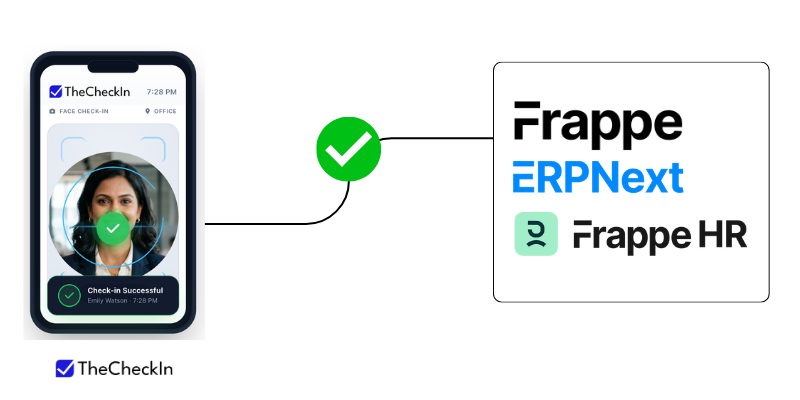
TheCheckIn adds the missing piece: face recognition attendance for ERPNext, running on an employee's own Android phone and connected straight to Frappe HRMS with a standard API key. No extra hardware, no separate ERPNext app to install. Here's exactly how to set it up.
Why ERPNext attendance usually needs help
Frappe HRMS and ERPNext handle payroll, leave, and shift rules well. The gap is upstream of all that: something has to actually record when an employee arrived and left. ERPNext's Employee Checkin doctype will happily store that data, but it relies on a biometric terminal at the door, a manual entry from HR, or an integration to fill it in.
Biometric machines mean extra hardware per site, wiring, maintenance, and a device everyone has to touch. TheCheckIn replaces that with face recognition on a phone employees already carry, and pushes the result straight into the same ERPNext doctype your auto-attendance and payroll already expect.
The 6-step setup
This is a one-time setup, done once per company. Budget about 15 to 20 minutes if your ERPNext admin has the login details handy.
- Generate an API key and secret in ERPNext. In ERPNext or Frappe, open the profile of the user TheCheckIn will connect as, go to
API Access, and generate a newAPI KeyandAPI Secret. Copy both somewhere safe, since ERPNext shows the secret only once. - Create your TheCheckIn account. Download the Android app or sign up on the web dashboard and set up your company. This is free for up to 10 employees, no credit card required.
- Enter your ERPNext details in TheCheckIn. Open Integrations → ERPNext / Frappe HR in the TheCheckIn dashboard, switch it on, and fill in three fields:
ERPNext Site URL,API Key, andAPI Secret. Save. That's the entire connection step, no ERPNext plugin required. - Sync employees from ERPNext. Click Sync Employees Now. TheCheckIn pulls every active ERPNext employee across and links each one to their ERPNext record, so attendance always maps back to the right person. Run this again any time you add new employees in ERPNext.
- Register each employee's face. Open each synced employee in TheCheckIn and capture their face once, on their own phone. ERPNext has no equivalent field for this, so face enrollment always happens inside TheCheckIn, even after the integration is live.
- Check in with face recognition. Employees check in and out using face recognition on their own phone, or you can put one Android phone into Kiosk Mode at the entrance for shared use. No fingerprint scanner or card reader to install.

What happens after every check-in
- The punch lands in ERPNext right away. Each face check-in (IN or OUT) is pushed to ERPNext's standard Employee Checkin log in real time, with the timestamp and GPS coordinates if location was captured.
- The day's Attendance record gets totalled up. Once the day's check-ins are in, TheCheckIn pairs them into first check-in time, last check-out time, and total hours worked, then creates the matching ERPNext Attendance record for that employee and date, marked Present.
- Frappe HRMS payroll reads it from there. Because the Attendance record sits in ERPNext's own doctype, Frappe HRMS payroll, leave deductions, and standard attendance reports work on it exactly as they would with any other Attendance entry.


Want the fuller picture of the two-way sync between TheCheckIn and ERPNext, including what stays owned by ERPNext versus TheCheckIn? Read the full ERPNext attendance integration overview →
Setup questions
Common questions from admins doing this setup for the first time.
Do I need to install anything inside ERPNext?
No. TheCheckIn connects to your ERPNext instance through ERPNext's own REST API using an API key and secret. There's no separate app, plugin, or bench command to run on the ERPNext side.
Where exactly do I generate the API key and secret?
In the ERPNext/Frappe user settings for the account TheCheckIn should connect as, under API Access. Generate the keys and copy the API Secret immediately, since ERPNext only displays it once.
Is employee sync automatic, or do I click something each time?
You click Sync Employees Now on the Integrations screen. It's a one-click pull of your active ERPNext employees, and you can run it again whenever you've added new employees in ERPNext.
Does this replace ERPNext's own Attendance module?
No, it feeds it. Every check-in and check-out lands in ERPNext's standard Employee Checkin log, and the day's totals are written into a normal ERPNext Attendance record. Nothing new for Frappe HRMS or your existing reports to learn.
Do I need any extra hardware?
No. Employees check in on their own Android phone. If you'd rather have one device at the door, Kiosk Mode turns any Android phone or tablet into a shared face recognition check-in point, so you're not buying a biometric terminal.
What if our ERPNext setup has custom fields or approval workflows?
The standard setup above covers most companies. If you need custom field mapping, multi-level approval chains, or shift rules that don't fit the default flow, that's a customization project. See ERPNext customization services →
Ready to connect TheCheckIn to your ERPNext?
Start with the free app, try face check-in with a few employees, then follow the six steps above to connect to ERPNext whenever you're ready. Free up to 10 employees, works with ERPNext v14 and v15, no extra hardware.
Get the Android app → · Ask us to walk you through it on WhatsApp →